User Guide
How to Use GoodEvening.tv
Everything you need to know, explained simply. No tech jargon, no confusing menus — just a friendly walkthrough of every feature.
Getting Started
GoodEvening.tv is a teleprompter that runs entirely in your web browser. That means there is nothing to download or install. Just open the app, write (or paste) your script, and start reading it off your screen while you record.
It works on any computer with a modern browser — Chrome, Firefox, Safari, Edge, you name it. And because it is a Progressive Web App (fancy term for "a website that can work like a desktop app"), you can even use it offline with no internet connection at all.
Getting started is free. You do not need a credit card or an account to start prompting. Just head to app.goodevening.tv and you are ready to go.
Your Script Library
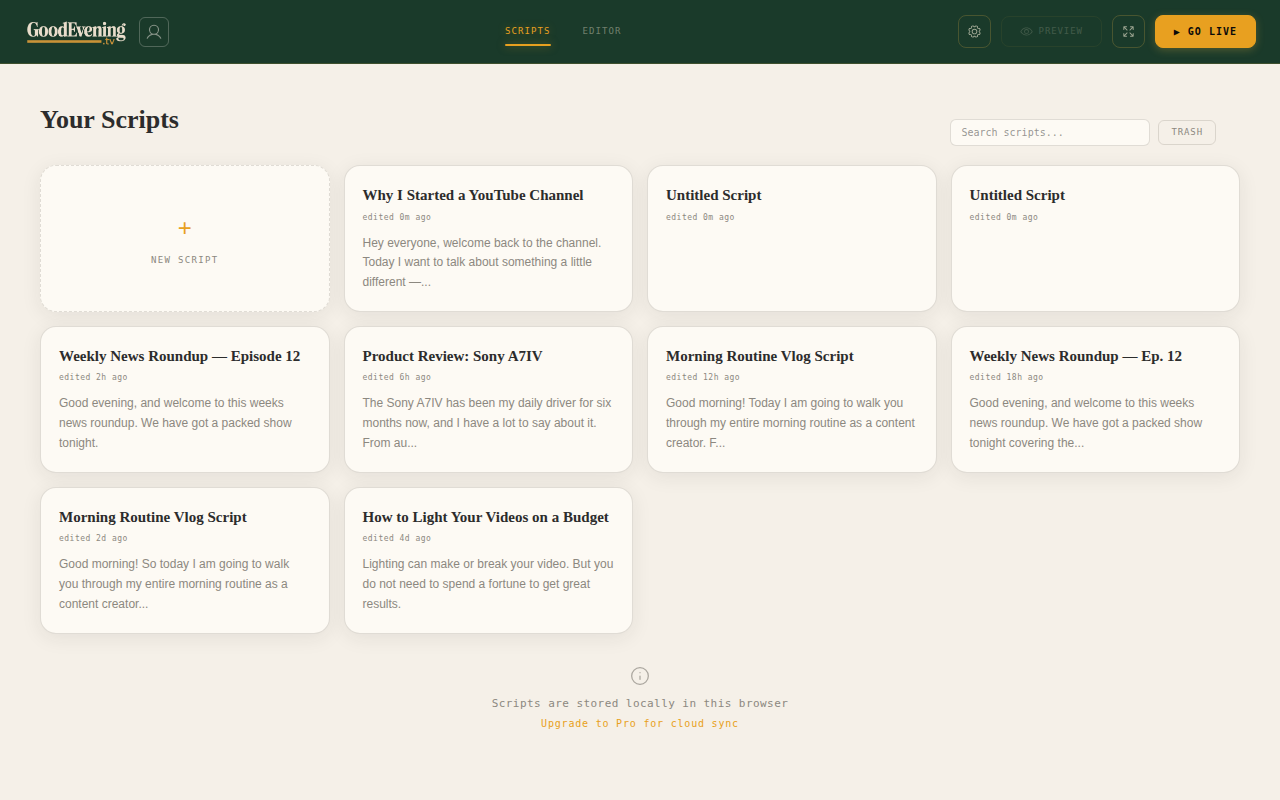
Your script library is where all your scripts live. Think of it like a folder on your computer, but built right into the app. When you open GoodEvening.tv, this is the first thing you see.
To create a new script, just click the New Script button. You can also use one of the built-in templates to get a head start — these give you a pre-written structure for common video formats like product reviews, tutorials, or vlogs. Templates are a Pro feature.
There is a search bar at the top so you can quickly find any script by name. If your library grows to dozens of scripts, you will appreciate this.
Deleting a script does not remove it forever — it goes to your trash first. If you accidentally delete something, you can restore it. This is your safety net.
The Editor
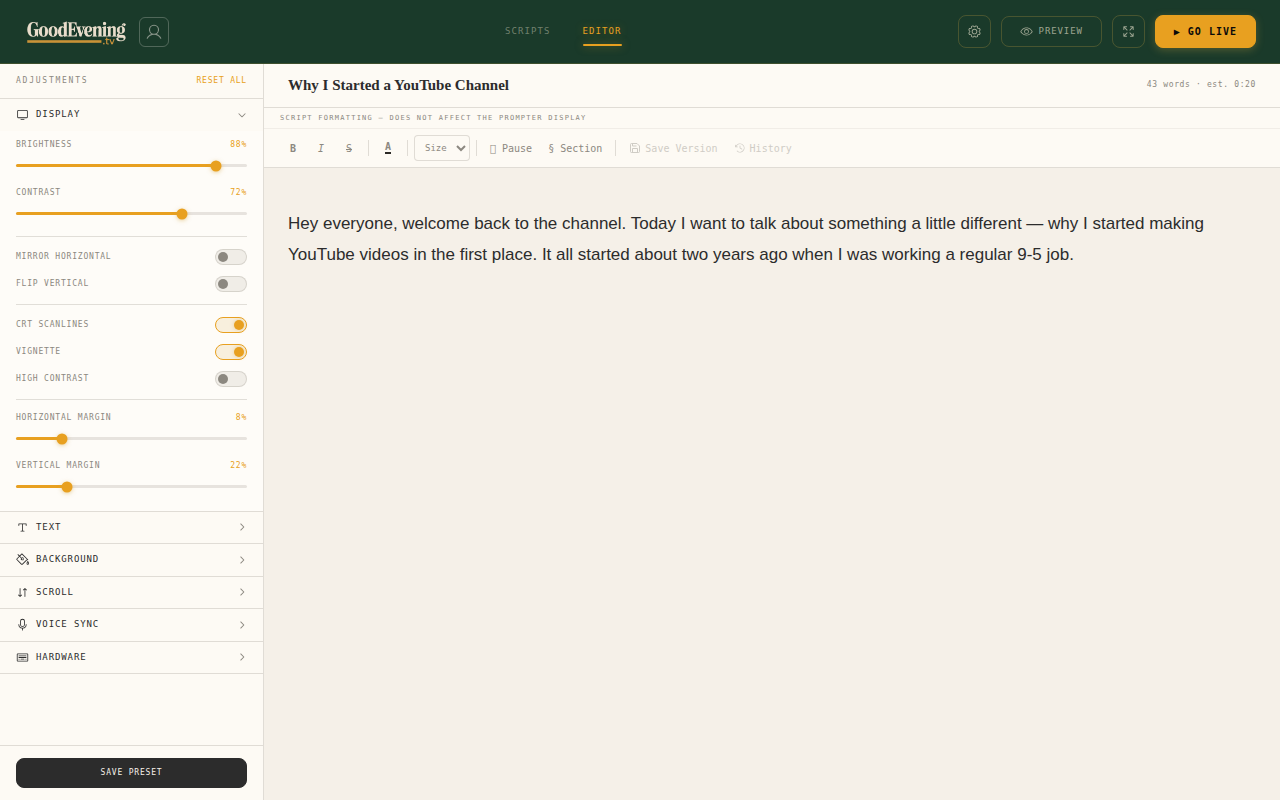
The editor is where you write and format your script. It is a rich text editor, which means you can bold, italicize, and organize your text with headings — just like you would in Google Docs or Word.
Speaking of Google Docs — you can paste directly from Google Docs and your formatting comes along for the ride. So if you wrote your script somewhere else first, just copy-paste it in.
To rename your script, click on the title at the top. At the bottom of the editor, you will see a word count and an estimated read time. This helps you figure out how long your video will be before you start recording.
If you are a Pro user, you can save any script as a template so you can re-use the same structure next time.
Going Live (The Prompter)
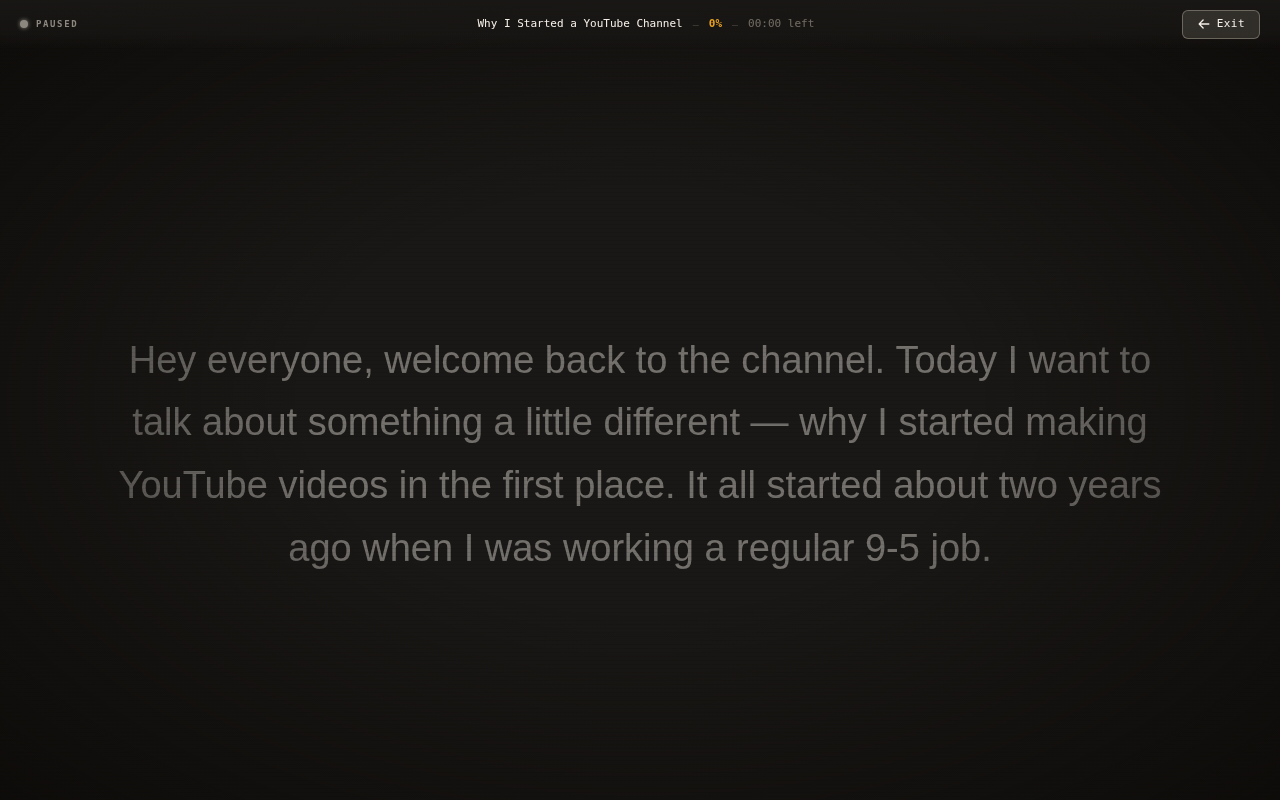
This is the main event. When your script is ready, click Go Live to enter the full-screen teleprompter. Your text fills the screen and starts scrolling at a steady pace so you can read it while looking at the camera.
You will see a focus line — a highlighted strip across the middle of the screen. This is where your eyes should be. The text scrolls up to meet the focus line, so you always know exactly where to look.
The scrolling is smooth and steady. No jumpy movements, no stuttering. You can control the speed, pause, rewind, and more — using your keyboard, a foot pedal, your phone, or even your voice.
The Adjustment Panel
The adjustment panel is the sidebar that lets you fine-tune how the prompter looks and behaves. It is organized into five tabs — here is what each one does.
Display
Control the look of your prompter screen. You can adjust brightness and contrast to make the text easier to read under your studio lights. There are also optional visual effects like scanlines and vignette that give the screen a classic broadcast TV feel.
The big one here is Mirror Mode. If you are using a beam-splitter teleprompter (the kind that sits in front of your camera lens with a piece of glass), turn this on. It flips your text so it reads correctly in the reflection. There is also Flip Vertical for setups that mount the screen upside down.
Text
Make the text yours. Change the font size to something comfortable for your reading distance. Adjust line height and letter spacing if the text feels too cramped or too spread out. Pick a different font family, change the weight (thin, regular, bold), set the alignment (left, center, right), choose your text and highlight colors, or turn on all caps if that is easier for you to read.
Background
Set the background color of the prompter. Most people use black, but you can pick whatever works best for your eyes and lighting. You can also adjust the margins to control how much space is on the left and right sides of the text.
Scroll
This is where you control the speed and behavior of the scrolling. The speed is measured in WPM (words per minute) — a comfortable reading speed is around 150 to 180 WPM, but you can go faster or slower depending on your style.
You can set a start delay so the prompter waits a few seconds before it begins scrolling (handy for getting into position). Turn on loop to have the script repeat when it reaches the end. Pause on blur automatically stops scrolling if you switch to another window. And auto-chapter lets the prompter pause briefly between sections of your script.
Voice
This tab controls Voice Sync — the feature that scrolls the text by listening to you speak. You can toggle it on or off here, and adjust the sensitivity (how closely it follows your voice) and gain (how loud the microphone input is). There is also an offline mode that runs voice recognition right on your computer instead of the cloud, and a mic selector so you can pick which microphone to use.
Voice Sync
Voice Sync is the standout feature. Instead of scrolling at a fixed speed, the prompter listens to your microphone and follows along as you speak. If you pause to take a breath, the prompter pauses too. If you speed up, it speeds up. It feels like the teleprompter is reading your mind.
It all runs right in your browser — no special hardware, no GPU, no cloud service needed. Just allow microphone access when your browser asks, and you are set.
If it feels like the text is moving too fast or too slow compared to your voice, open the Voice tab in the adjustment panel and tweak the sensitivity and gain sliders until it feels right.
Phone Remote Pro
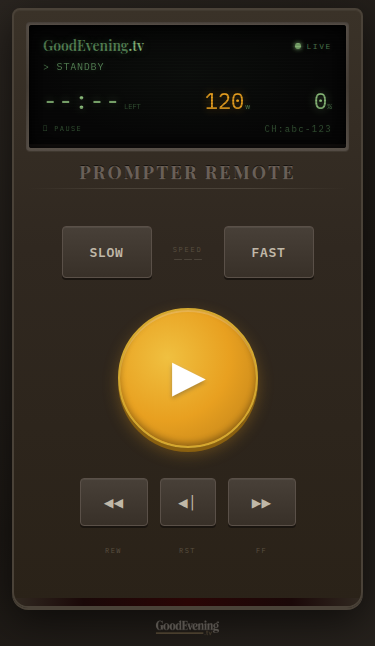
Your phone becomes a wireless remote control for your prompter. Here is how it works: when you start a prompting session, a QR code appears. Scan it with your phone's camera, and a control panel opens in your phone's browser. That is it — no app to install.
From your phone, you can play and pause, change the scroll speed, nudge the text forward or back, and reset to the beginning. There is also a section drawer that lets you jump to any section of your script with one tap.
This is perfect for when your computer is across the room behind a teleprompter rig and you need control from where you are standing.
Secondary Display
If you have a second monitor, you can open the prompter on that screen while keeping your main screen free for notes, chat, or the editor. The second display stays perfectly in sync — whatever happens on the main prompter happens on the secondary display too.
This is great for studio setups. Put the prompter on the monitor near your camera, and use your laptop screen to control everything.
Stream Deck Integration Pro
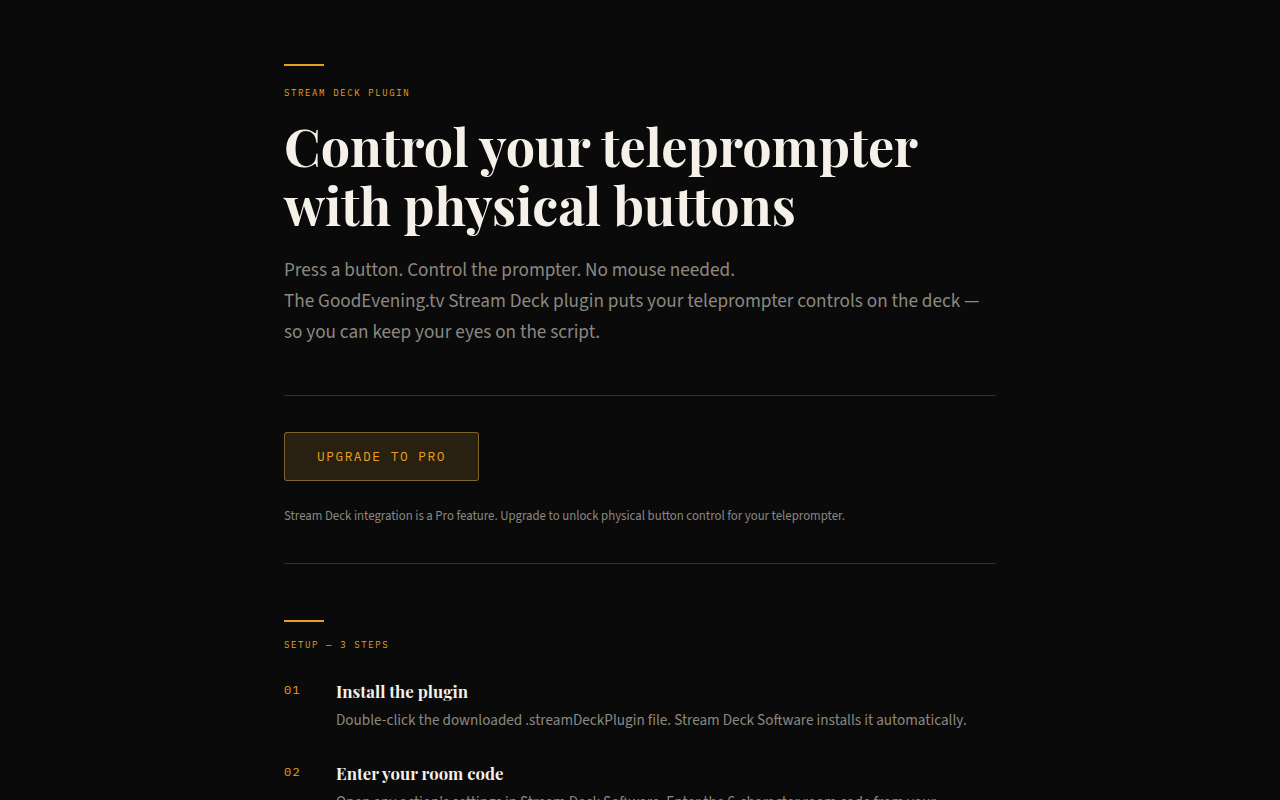
If you have an Elgato Stream Deck on your desk, you can assign physical buttons to control your teleprompter. Press a button to play or pause, speed up or slow down, jump to the next section, or reset to the beginning — all without touching your keyboard or mouse.
It is a small thing, but having a dedicated button for "pause prompter" right under your thumb makes a big difference when you are in the middle of a take.
Hardware Presets
GoodEvening.tv comes with built-in presets for popular teleprompter hardware like the Elgato Prompter. When you pick a hardware preset, the app automatically adjusts the display to match that device — including setting up dead zone overlays.
Dead zones are the parts of the screen that are hidden behind the frame of your teleprompter hardware. The overlay grays out those areas so your text stays inside the readable area. No more guessing whether your words are getting cut off.
Keyboard Shortcuts
Everything in the prompter can be controlled with your keyboard. Play, pause, speed up, slow down, jump between sections, reset — all available as keyboard shortcuts.
The shortcuts are fully customizable. If you do not like the default key bindings, head to Settings and change them to whatever feels natural to you.
Foot Pedal Support
If you have a USB foot pedal, you can use it to control your prompter hands-free. Think of it like a sewing machine pedal, but for reading — press down to scroll, release to stop.
GoodEvening.tv supports standard HID foot pedals. Plug yours in, and assign the pedal actions in Settings. This is especially useful if your hands are busy — for example, if you are demonstrating a product while reading.
Per-Script Settings
Every script can have its own settings — scroll speed, font size, colors, you name it. These override your default settings just for that specific script.
This is handy when you have scripts that need different pacing. Maybe your news-style scripts need a faster speed, while your conversational vlogs need something slower. Set it once per script and forget about it.
Cloud Sync Pro
With Cloud Sync, your scripts are saved to the cloud and available on every device. Sign in on your laptop at home, then sign in on your desktop at the studio — all your scripts are right there waiting for you.
Changes sync automatically. Edit a script on one device, and the updated version is ready on your other devices the next time you open the app.
Version History Pro
GoodEvening.tv automatically creates backups of your scripts as you work. You can schedule how often backups happen — every few minutes, every hour, or whatever suits you.
If you accidentally delete a paragraph, rewrite something you liked better before, or just want to see what your script looked like yesterday — open the version history and go back in time. You will never lose a draft.
Custom Fonts Pro
Do you have a favorite font that helps you read more easily? Upload it. GoodEvening.tv supports .ttf, .otf, and .woff2 font files. Once uploaded, your custom font appears in the font picker and can be used in the prompter.
This is great for creators who use a specific font for brand consistency, or for anyone who simply reads better with a particular typeface.
Import and Export
You can import scripts into GoodEvening.tv and export them out. This is useful for backups — export your scripts and save them somewhere safe on your hard drive.
It is also handy for collaboration. Write a script, export it, and send it to a colleague. They can import it into their own GoodEvening.tv and start prompting right away.
Offline Mode
GoodEvening.tv works without an internet connection. Your scripts are stored locally in your browser, and the entire app is designed to run offline. This means you can use it on location, in a studio without Wi-Fi, or on a plane — anywhere you need it.
The app is a PWA (Progressive Web App), which means you can "install" it to your desktop or home screen. It will launch like a regular app, work offline, and look like a native program — even though it is running in your browser behind the scenes.
Settings
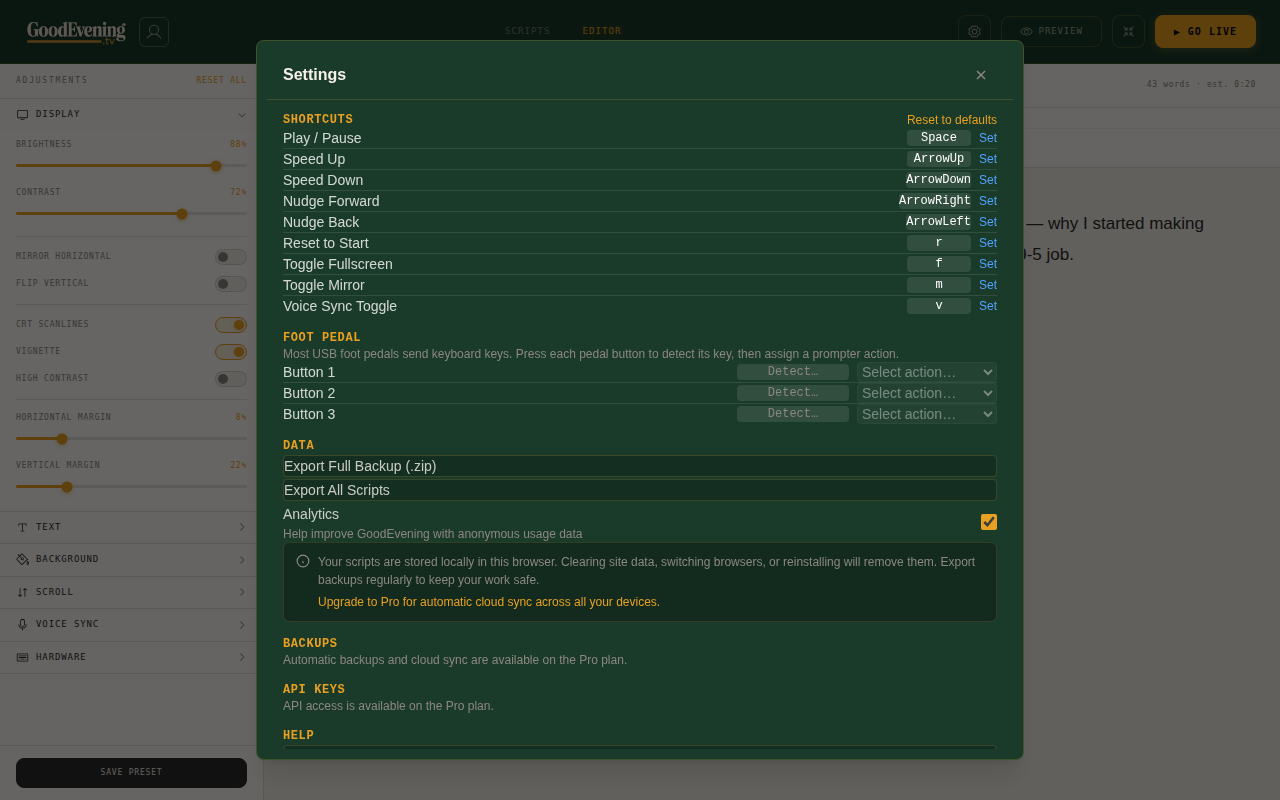
The Settings page is where you configure general preferences, manage your API keys (Pro), and turn on accessibility features.
Under Accessibility, you can enable High Contrast Mode for sharper visuals, or switch to the OpenDyslexic font if that makes reading easier for you. There is also a framing guide overlay to help you position yourself in front of the camera.
This is also where you customize keyboard shortcuts and manage foot pedal bindings.
Free vs Pro
GoodEvening.tv is generous with its free tier. Here is what you get without paying anything:
Free
- ✓ Full teleprompter with smooth scrolling
- ✓ Voice Sync
- ✓ Rich text editor
- ✓ Keyboard shortcuts (customizable)
- ✓ Foot pedal support
- ✓ Secondary display
- ✓ Offline mode / PWA
- ✓ Import and export
- ✓ Hardware presets
- ✓ Per-script settings
Pro
- ✓ Everything in Free, plus:
- ✓ Phone Remote
- ✓ Stream Deck integration
- ✓ Cloud Sync
- ✓ Version History
- ✓ Custom Fonts
- ✓ Script Templates
- ✓ API access
Curious about pricing? Check out the Pricing page for the full details.
Ready to start prompting?
Open the app, paste your script, and hit Go Live. It really is that simple.
Start Prompting Free